Batch code generation
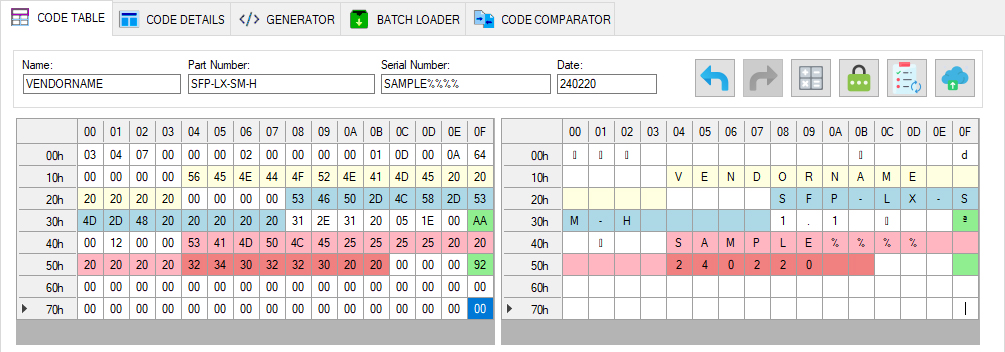
The software can generate firmware files in batches from a template, incrementing the serial number and saving each result to a file. To generate firmware with increasing serial numbers, enter placeholder characters in the template's Serial number field: %%%%.
During firmware generation, the %%%% characters are replaced with the corresponding numeric value.
-
Load the firmware template into the editor.
-
Enter placeholder characters in the Serial Number field as shown in the image.
-
Open GENERATOR to access the batch firmware generation settings.
-
Set the directory where the application should save the firmware files.
-
Set Start position to specify the starting value for serial number generation.
-
Set Count to specify the number of firmware files to generate.
-
Select Update checksums to have the application automatically recalculate CC_BASE and CC_EXT checksums when generating firmware.
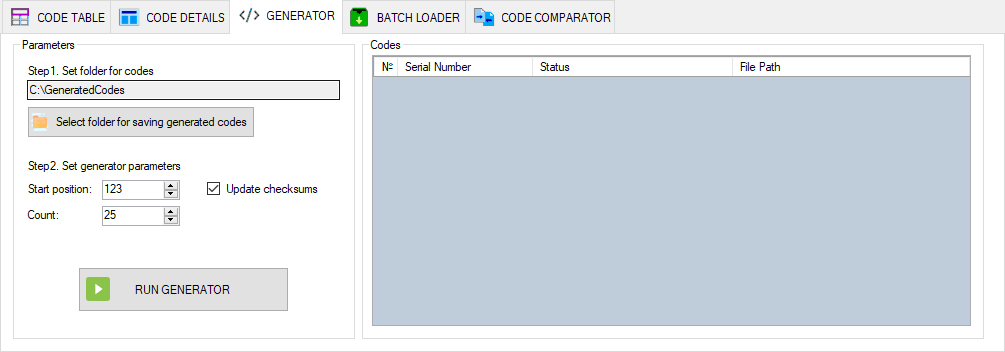
- Click Run Generator to start the process.
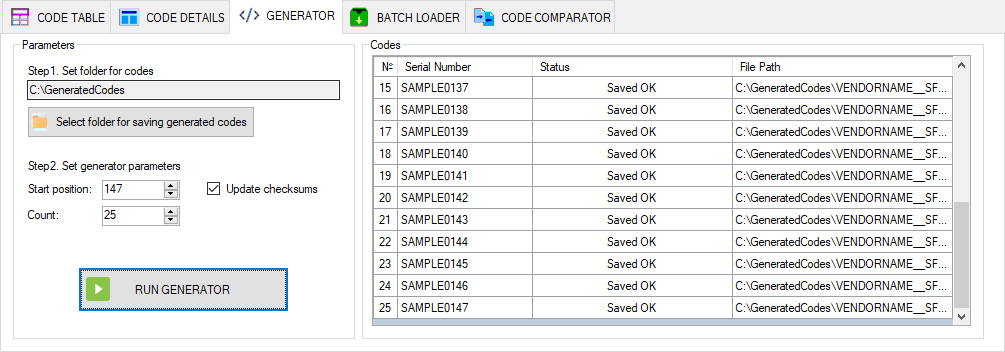
The application generates the firmware using the specified settings and saves the files in the selected directory. Generation progress is shown in the table on the right side of the window.
The firmware files will be available in the specified output directory.
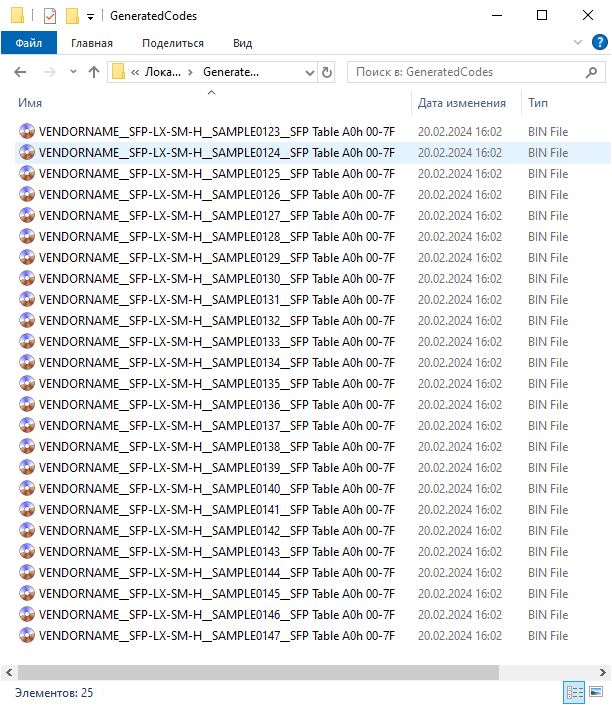
Use these files for subsequent operations.